

/memory-permissions). It replaces the old Members page: the Members link in the profile menu now opens Teams and people on this page.
The page reads top to bottom, and each part is drawn for your role. For the model behind it (teams, owning teams, agents and promotion), see Permissions and memory promotion.
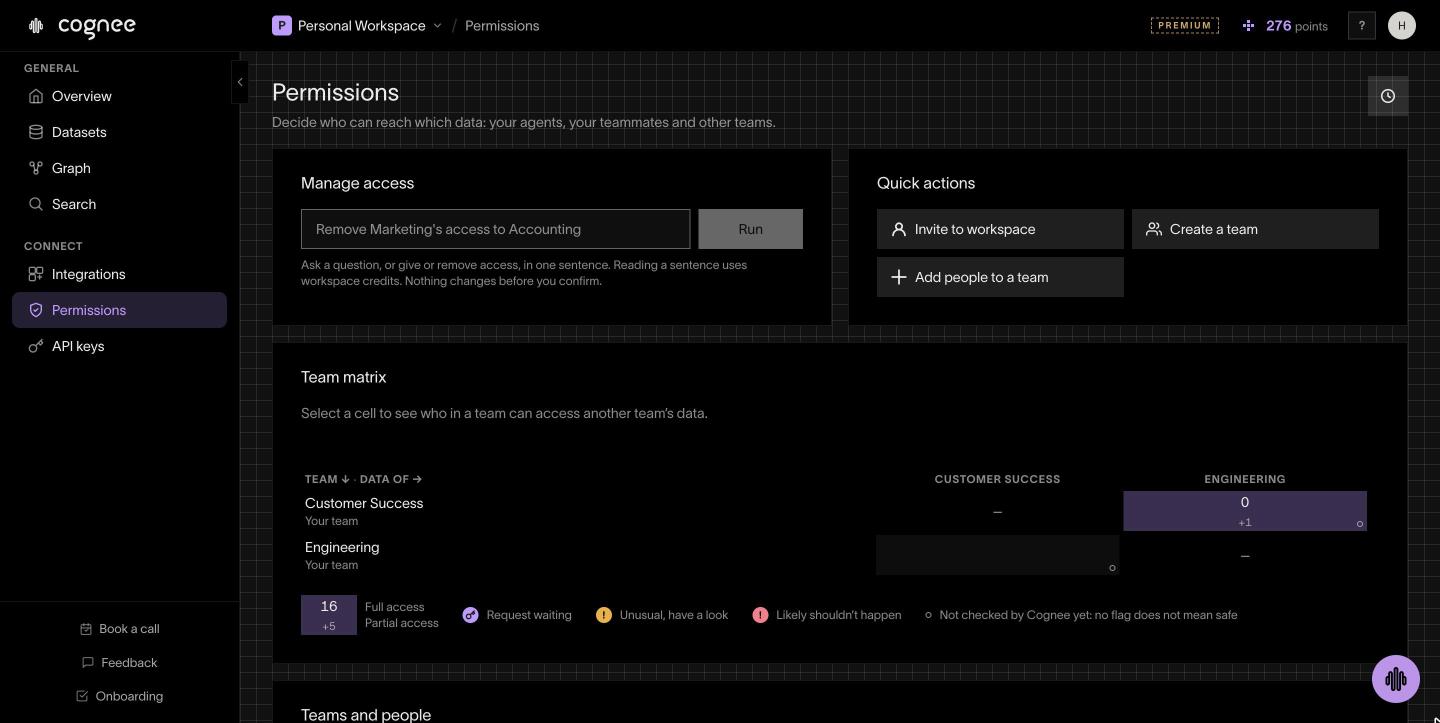
The top of the Permissions page: Manage access, Quick actions, and the Team matrix of which team can reach which team's data
What you see by role
An agent acts for the person who owns it and administers nothing.
Manage access
Workspace and organisation admins get a single field: ask a question or give or remove access in one sentence (up to 500 characters), then click Run. For example:Who can see Forecast?Remove Marketing's access to Accounting
Only workspace and organisation admins get this field. Members, team admins and agents don’t see a sentence field yet; to ask for data, use the Team matrix.
Needs attention
Admins and team admins get a Needs attention strip at the top of the page while something waits for their decision. It is hidden when nothing does. Each item is a promotion: a question that another team kept asking about your team’s data. The row shows the question, From your team, who asked (and their teams), how often, and what kind of evidence answers it. Promote to … answers the question from your team’s data only and adds the answer to the asking team’s Promoted Memory dataset; Keep in … shares nothing and closes the question. Both show a preview first, and promoting uses workspace credits. The strip shows 50 items at a time, with Show more below. Under Manage access, Suggested by Cognee proposes up to three changes, such as giving or removing a team’s access to a dataset it does or doesn’t use. See all suggestions lists the rest with Apply and Apply all; each change is previewed and confirmed like any other.Quick actions
Beside Manage access, the workspace admin gets one-click shortcuts: Invite to workspace, Create a team and Add people to a team. An organisation admin gets the same without Create a team. A team admin gets Add people to your team, shown on its own in the same place.Your requests
When you have asked for access that is still waiting, Your requests lists each request in your own words, with the team whose data it is for and sent time, marked waiting for a workspace admin. Withdraw takes a request back. The part is hidden while you have none. To send a request, open a cell in the Team matrix and describe what you need and what for under Request … data. A workspace admin reads it and decides what to share. Answering requests on the page is rolling out; until then, admins answer them directly.Team matrix
The matrix shows which team can reach which team’s data. Rows are teams; columns are the teams whose datasets they reach. Point at a cell to read what it counts, for exampleSales → Finance: 2 of 4 datasets; of 6 people, 3 full access, 1 partial.
- A team’s own column reads as its own team: everyone in a team sees its data.
- A dashed cell means No data in that team yet.
- In an admin’s matrix, rings mark what waits on a pair: Request waiting, Unusual, have a look (amber) and Likely shouldn’t happen (red). A small open dot means Not checked by Cognee yet: no flag does not mean safe.
- Click Give or Remove for a person, or for the whole row team on one dataset.
- Read the preview: who reaches it now and after, and who keeps it another way.
- Click Give access or Remove access to confirm, or Cancel. A confirmed change offers Undo.
Nobody gives themselves access, a workspace admin included. You can remove your own access, but only another admin can give it back.
Teams and people
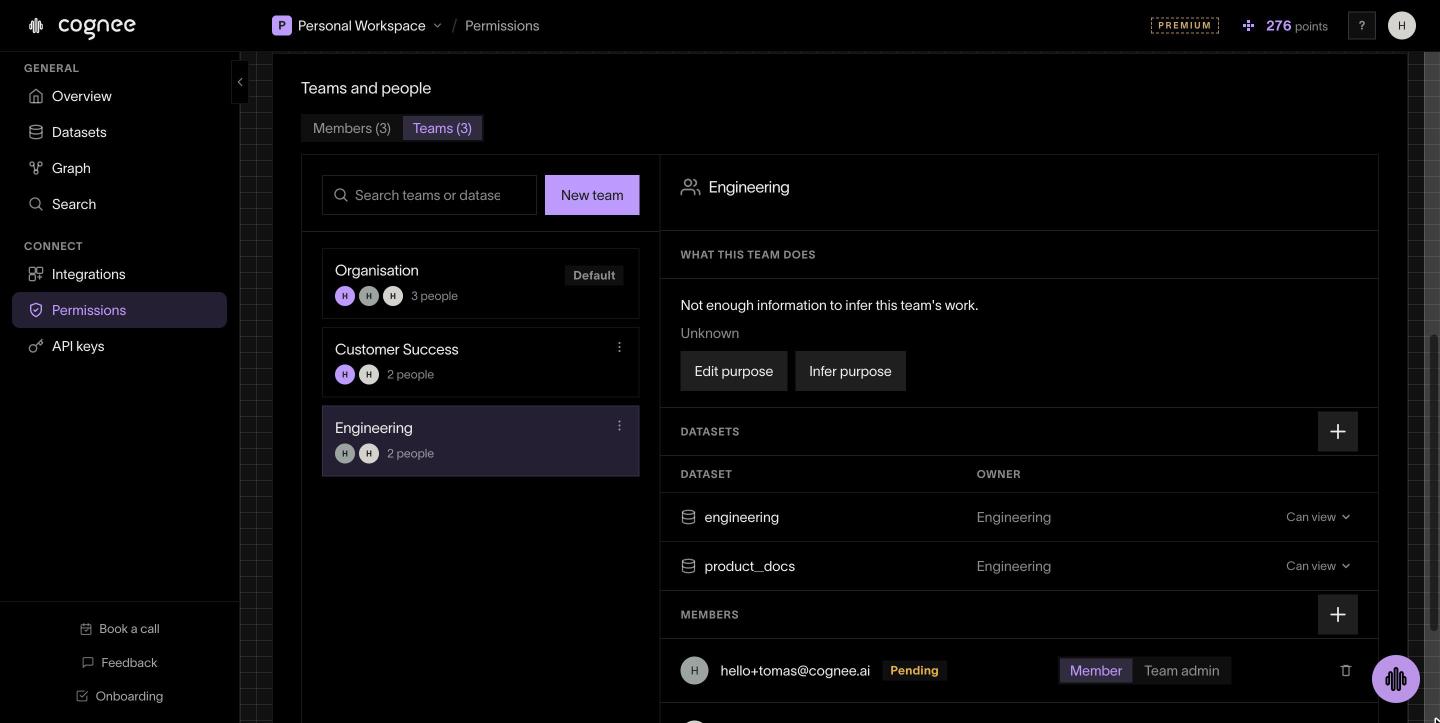
Teams and people on the Teams view: a team's datasets with their access level, and its members with their team role
Members
Everyone in the workspace, with their Role. Click Invite member, enter one or more emails and click Send invite. Existing Cognee accounts join straight away and are in the Organisation team at once; anyone else gets an email and joins once they sign up with that address. Until then they show as Pending, with Resend invite and Revoke invitation. Admins can Remove member. If an invited teammate still can’t reach the workspace, a shared dataset or your data from Claude, see When a teammate can’t reach your workspace or data.Teams
Every workspace has an Organisation team that everyone belongs to. Nobody can add people to it, leave it, rename it or delete it; its admins are the organisation admins. Open a team to see:- What this team does: the team’s purpose. Admins and the team’s admins can Edit purpose, or Infer purpose to let Cognee suggest one.
- Datasets, each with its Owner (owning team) and the team’s access level. Promoted Memory marks the team’s promoted memory dataset.
- Members, each as Member or Team admin (Organisation admin in the Organisation team). Whoever may name admins switches the role here.
A grant made through the API that matches no level shows as Custom. A new or private dataset added to a team becomes owned by that team; another team’s dataset keeps its owner. Create dataset makes a new dataset the team owns; names cannot contain spaces or dots.
History
The clock icon beside the page title opens History: for admins, every answer to a request, with who made it and when; for everyone else, their own requests and answers.History is rolling out. The drawer opens but shows Not available yet until it is live.
Related
Permissions and memory promotion
Teams, owning teams, agents and how memory is promoted.
Permissions API
Endpoints for workspaces, teams, dataset grants and agents.