

/datasets, under General in the sidebar) lists every dataset you can open in the workspace. A dataset is a container of long-term memory: the documents, connector data and agent sessions it holds are turned into a knowledge graph you can search. See Datasets for the concept.
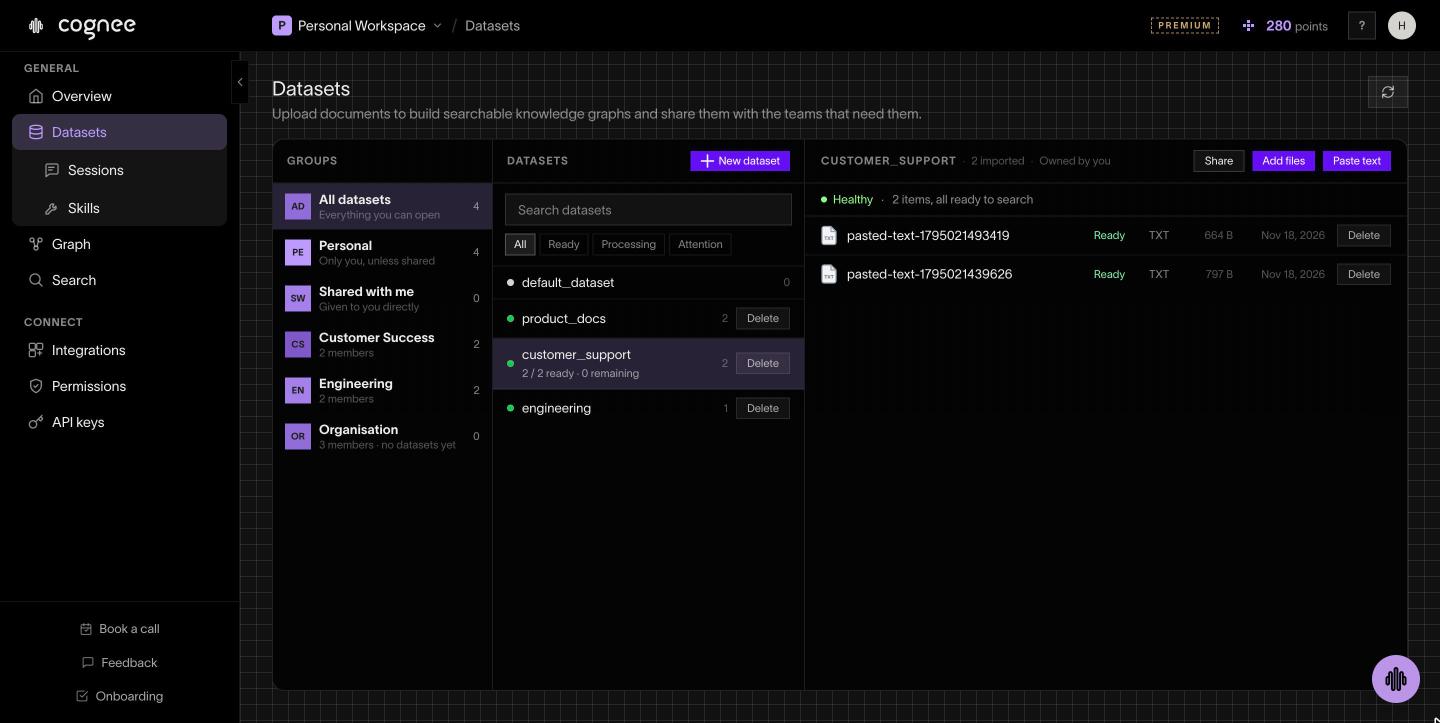
Datasets: groups on the left, the datasets in the selected group, and the documents of the selected dataset with their status
Layout
The page has three columns:
A dataset reachable two ways (say, yours and also shared with a team) appears under both, but it is one dataset. If the groups cannot be loaded, only All datasets is shown and every dataset is still listed.
Datasets someone gave you directly are under Shared with me, and the documents panel names their owner (Owned by …). If a shared dataset is missing, check that the right workspace is active in the workspace switcher.
Datasets can be owned by a team. When a dataset is added to a team on the Permissions page, everyone in the team can reach it, and it shows under that team in the Groups column. A new or private dataset added this way becomes owned by the team; another team’s dataset keeps its owner. See Permissions and memory promotion.
Status dots
Each dataset row carries a status dot; hover it for the meaning.
The Attention filter shows failed and outdated datasets; Ready includes empty ones.
Create a dataset
Click New dataset, enter a Name (placeholder product-docs) and click Create. Spaces become hyphens as you type, periods are not allowed (Dataset name cannot contain periods.), and the name is saved in lowercase with hyphens turned into underscores (product-docs is saved as product_docs). A name that already exists is refused with A dataset with this name already exists.
A new dataset is private: only you can open it until you share it. It lands under Personal, selected and ready for files.
Add documents
Select a dataset, then:- Add files: upload documents such as
.pdf,.csv,.txt,.md,.jsonor.docxfiles (the dataset page’s Upload files accepts only these six). You can also drag files onto the documents column (Drop to upload). - Paste text: paste raw text, saved as
pasted-text-{timestamp}.txt.
Processing progress
Above the documents, a progress line says how much of the dataset can be searched:- While a run is working: a bar with {n} of {m} ready to search and {k} remaining · Processing in progress, refreshed every 5 seconds.
- Healthy: {n} items, all ready to search.
- Needs attention: some items are not ready and no run is working on them.
- Failed: some items are not ready because the last run failed.
Share a dataset
Share appears for datasets you have Full access to. It opens Share {dataset}: Private until you share it. Give a person, a group or the whole workspace the same access to it. The dialog lists who already has access, each with a level you can change or Remove. To add someone, choose a person, a group or Everyone in the workspace, pick a level, and click Share:
To see and change access across all datasets at once, use the Permissions page.
Datasets from connectors
Each connected source, such as Slack, Notion or GitHub, writes into its own dataset (for examplegithub_<account>). The workspace owner can point a connector at a different target dataset from Integrations. A dataset fed by a connector shows a Sync button on its detail page, which re-runs processing on its current content.
Agent plugins write sessions to the agent_sessions dataset by default. See Sessions.
Dataset detail
The dataset page (route/datasets/<dataset-id>) shows one dataset with its document count and a status: Processing, Ready, Outdated, Failed, Failed — insufficient credits (links to Billing) or Empty. default_dataset carries a Default badge.
Selecting a dataset on the list does not open this page. Open it in one of these ways:
- After an upload from the Dashboard, click Inspect the knowledge graph in the Knowledge graph built dialog.
- On the Permissions page’s Teams view, click a dataset’s name in a team’s dataset list.
- Go to
/datasets/<dataset-id>directly.
Find a dataset’s ID
The dataset ID is the UUID at the end of the dataset page’s URL (/datasets/<dataset-id>). The list does not show IDs. Through the API, GET /api/v1/datasets/ returns every dataset you can open with its id and name. Endpoints such as export, graph and visualize take this ID.
Header actions: Sync (connector datasets only), Delete (not on default_dataset), Share and Upload files. The files table can be searched with Search files….
Banners on this page:
- Knowledge graph is outdated. The graph model, prompt or ontology was changed since the last build. with Rebuild graph.
- Building the knowledge graph failed. Your files are still here — you can retry the build. with Retry build.
- Building the knowledge graph failed — your workspace ran out of credits mid-run. Your files are still here. with Go to billing, since a retry on an empty balance would fail the same way.
Extraction settings
Under Memory customization, three dropdowns control how Cognee extracts this dataset’s graph. Each defaults to Automatic:- Graph model: the entity types and relationships to extract. Create new opens Create Graph Model, where you either Infer from data (Analyze {n} files to suggest a schema) or Start blank.
- Prompt: the extraction prompt. Create new offers Generate from graph model or Start blank.
- Ontology: an OWL ontology to guide extraction. Upload new takes a Key, an OWL File (
.owl) and an optional Description.
Graph Model editor
The Graph Model editor (route/graph-models/<id>) opens full screen from the Graph model dropdown. Each entity type is a node: Add entity type adds one, and selecting a node opens its Name, Description and fields (String, Number, Boolean, Date, or Relation → to another type). The header shows the type and relationship counts, an Unsaved flag, and Delete, Regenerate and Save.
Regenerate infers the types again from files you pick. It replaces every type on the canvas instead of merging, and leaves the result unsaved for you to review.
Delete a dataset
Click Delete on a dataset row or the detail page and confirm. The dataset and all its files are removed permanently. While the workspace confirms the deletion, the row reads Deleting…; if it is not confirmed in time, it reads Deletion not confirmed. Retry or refresh. with Retry delete.default_dataset cannot be deleted.
Empty and error states
- No datasets: No datasets yet, with Create dataset.
- The list fails to load: Couldn’t load your datasets (Your datasets are safe — we just couldn’t reach the server.) with Retry. A failed load is never shown as an empty workspace.
FAQ
My dataset never becomes Ready
My dataset never becomes Ready
Select it and read the progress line above its documents.
- {n} of {m} not ready to search. The last processing run failed.: click Retry build. If the status is Failed — insufficient credits, top up first.
- {n} of {m} not ready to search, and no processing run is working on them.: nothing is building these items. Start a build with
POST /api/v1/cognifyon the dataset, and see which items are still pending with per-item processing status. - Outdated: open the dataset page and click Rebuild graph.
Can I rename a dataset?
Can I rename a dataset?
No. A dataset keeps the name it was created with, in the UI and in the API. To use a different name, create a new dataset, add the files to it, and delete the old one.
Can I merge two datasets?
Can I merge two datasets?
There is no merge action. To fold one dataset into another, either upload the original files again into the target dataset, or move the built graph: export the source as a COGX archive and import it into the target with
POST /api/v1/remember and content_type=cogx-archive. Then delete the source dataset. Add files does not accept .tar.gz archives, so the import has to go through the API.